

FAQ
What if the official app has compatibility or connection issues on iOS? 
Make sure 5UF VPN is the latest version from the App Store. Builds 5.3 and newer officially support iOS 16 and later, fixing most cases where the app could not run on iOS 16. If your iPhone or iPad runs iOS 16+, update the app to 5.3 or higher (use the version number shown in the App Store).
More details: iOS client update announcement.
On iOS 15 or earlier, or if the hardware cannot upgrade to iOS 16+, the official app may still be limited. You can:
- Upgrade iOS as far as your device allows, then install or update the official app; or
- Use a third-party VPN client with 5UF where appropriate.
Tutorial: How to use a third-party app with 5UF VPN
If issues remain on 5.3+, contact support with your iOS and app version.
Can I still buy old plans, purchase extra connection slots separately, or get discounts?
We have streamlined our plans and purchase flow under an updated company policy. The goal is a consistent buying and usage experience across platforms and less confusion when choosing options.
Under the current policy, only the “Personal Professional” tier is available for new purchases. It allows up to five devices online at the same time. Extra connection slots or add-on device seats are not sold separately.
What “Personal Professional” maps to: it aligns with the former VIP4-1-5 user group (legacy naming VIP4-X-5, where X is the billing term and 5 means five concurrent connections). The new strategy simplifies checkout so newcomers are not lost in a maze of retired SKUs.
Why “unlimited-style” subscription beats metered anxiety: streaming moved from pay-per-view to subscriptions largely for UX. Heavy daily users usually get better peace of mind on a flat plan; operators may earn less per byte, yet reverting to an iTunes single-track purchase model—deciding before every song—would feel hostile and impractical.
VPN is heading the same way: regular users should not constantly worry about blowing a traffic cap. Use the service on devices you personally own; we do not recommend sharing one account among many people, which may violate acceptable use and hurt security or quality.
For promotions or discounts, follow the checkout page and official announcements; limited-time offers appear on the website or in the app when available.
What is the app “availability test” on the home screen, and how does it work?
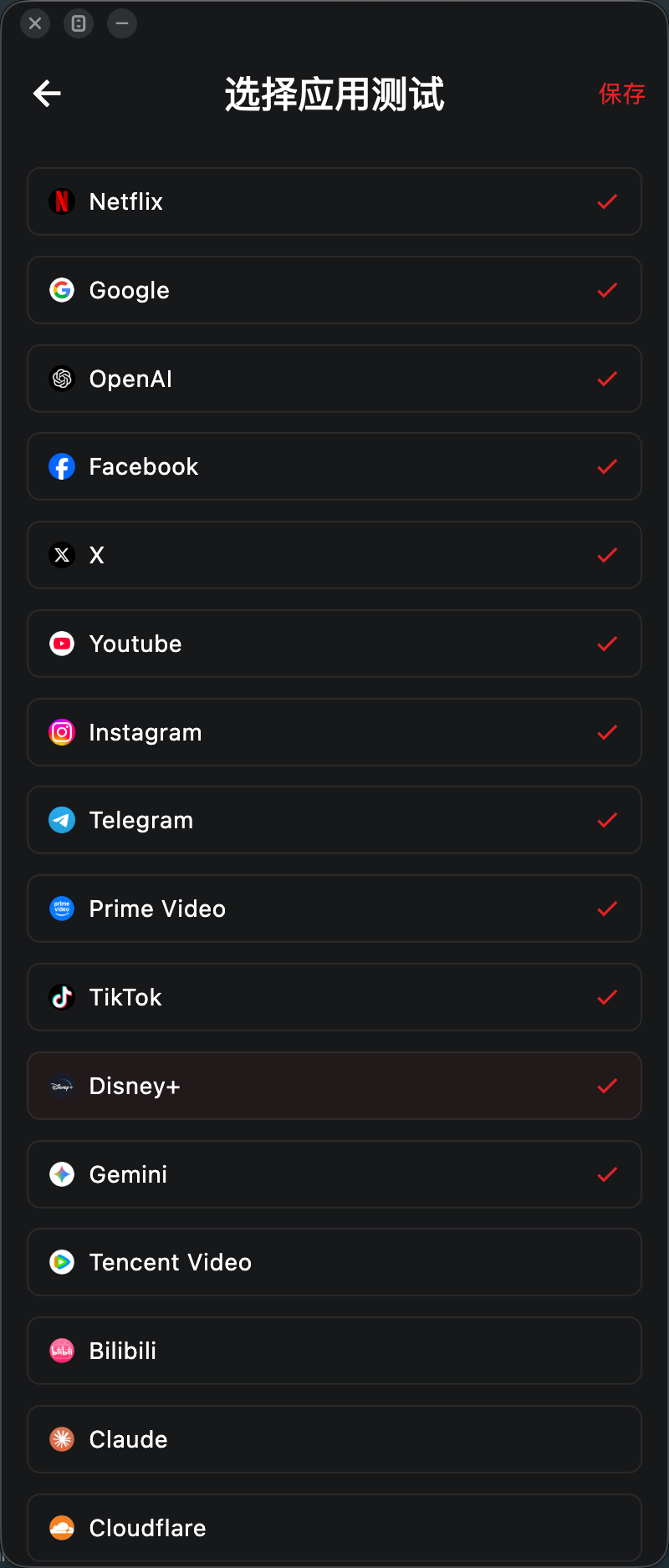
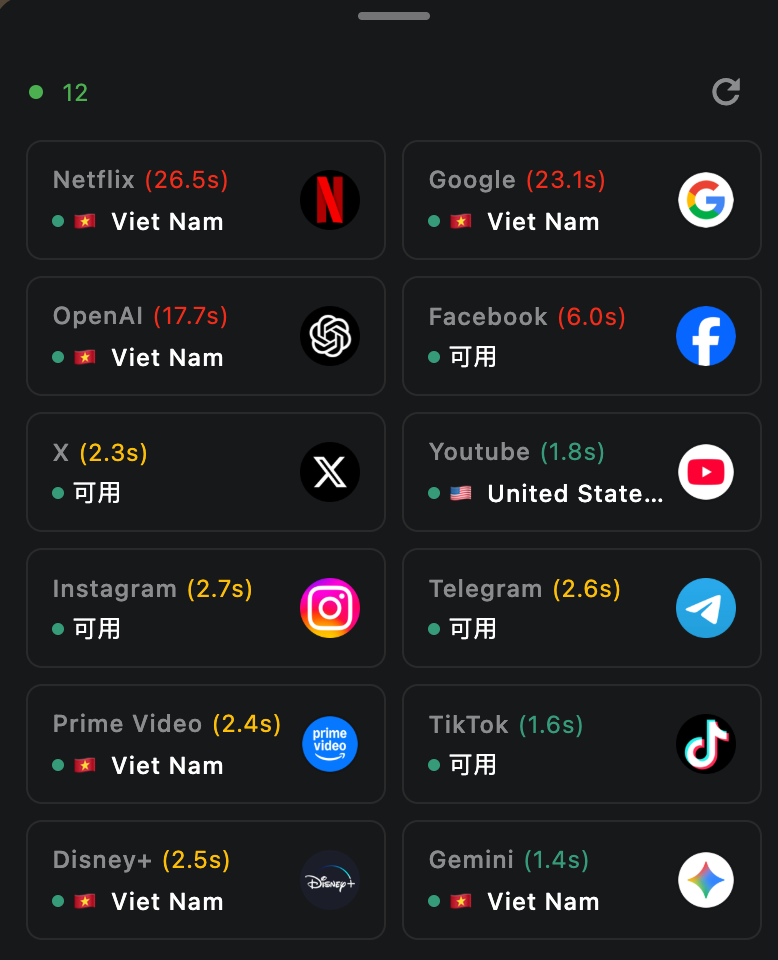
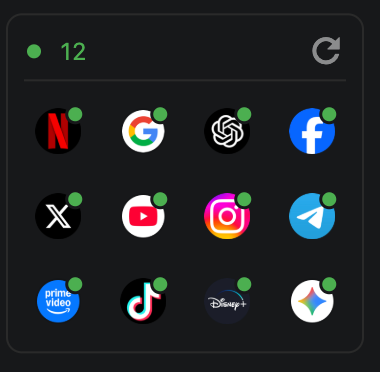
The availability test simulates requests to dedicated check URLs for selected apps. Based on what comes back, it can help you gauge whether your current network can reach those apps and whether you appear to fall into a given country or region’s service area.
Please note: results are not guaranteed to be accurate, and not every service can clearly report a country or region. The feature is meant for a quick, practical snapshot of app reachability in your current environment—not a definitive geo or compliance check.
Many availability checks are built in. You can add or remove the apps you care about in Settings.
Each run is very fast, uses very little data, and has a minimal resource footprint on your device.
What if Super VPN is unstable?
Try changing network or switching to another server. If you need a more stable long-term setup, use the latest 5UF VPN app instead of relying on the old browser-based solution.
Why does the extension keep asking me to sign in again?
- Local extension data may be corrupted.
- You may be entering the wrong password type.
- Your browser may have cleared the extension storage.
Try signing in again first. If the problem continues, clear the extension data and add it again, or switch to the latest 5UF VPN app.
What is the compatibility password?
The compatibility password is kept for old protocols and legacy compatibility mode. It may be different from your normal app login password. Please follow the information shown in your account panel.
Why does it ask for my password again after I select a server?
In that case, you usually need to enter your compatibility password, not your normal app login password.
- When signing in to the account: usually use your normal account password.
- When a password prompt appears again after selecting a server: usually use the compatibility password.
Does Super VPN only work inside the browser?
Yes. Super VPN mainly works in the browser environment and does not route all system traffic like the latest app.
What is the difference between Super VPN and the latest app?
- The latest 5UF VPN app is better for regular use, with better stability and compatibility.
- Super VPN is more suitable for browser-based access and quick switching. It is not a full-system VPN.
Should I use Super VPN or the latest 5UF VPN app?
Super VPN is suitable for temporary browser access. For daily use, we still recommend the latest 5UF VPN app.
How does the 5UF VPN app home screen speed test work, and will it use much data?
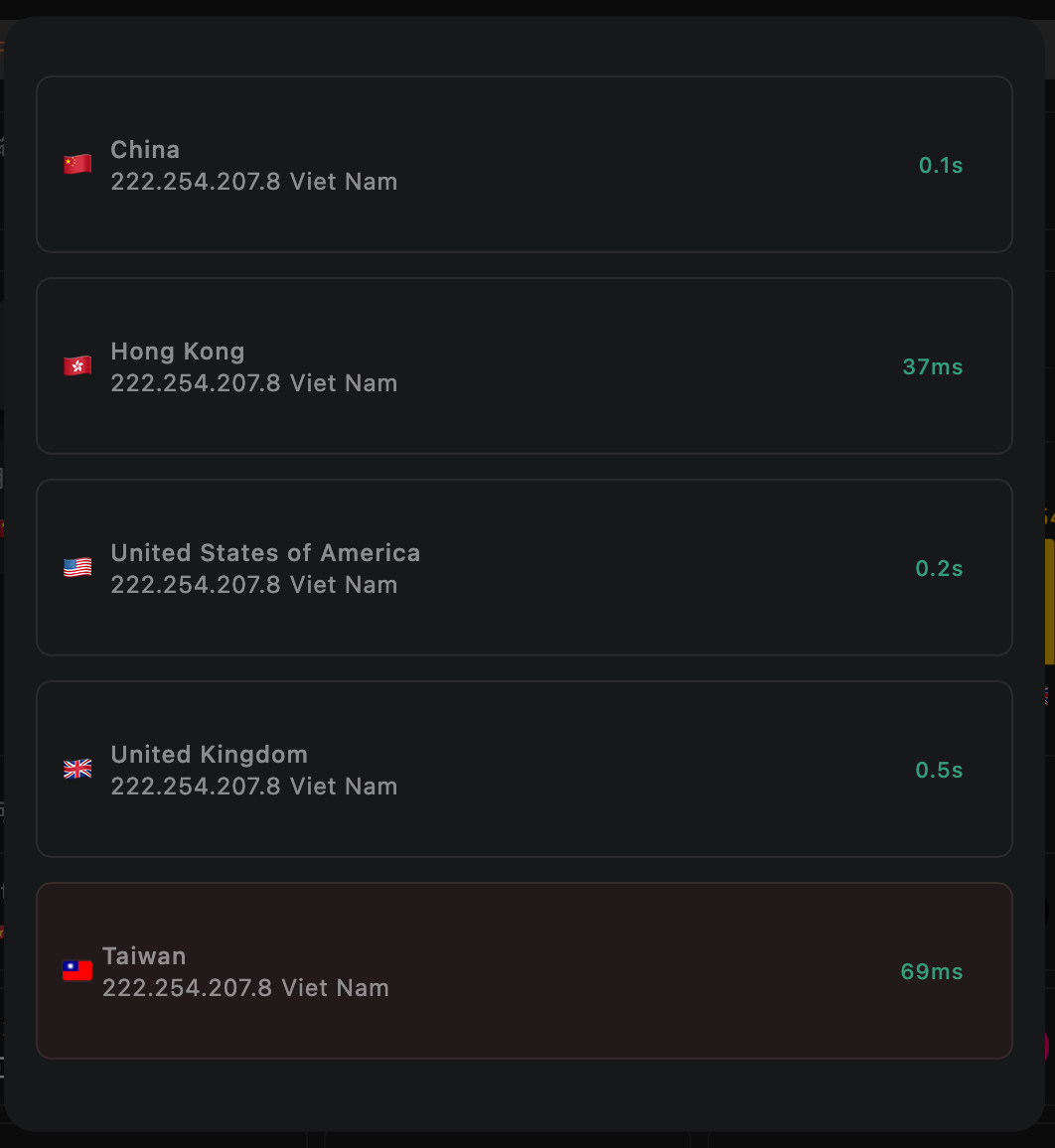
On the 5UF VPN (V5) home screen, the speed test sends a very small HTTP request to our dedicated test page. The page only shows your egress IP, so data usage is minimal and it should not meaningfully affect your allowance or billing.
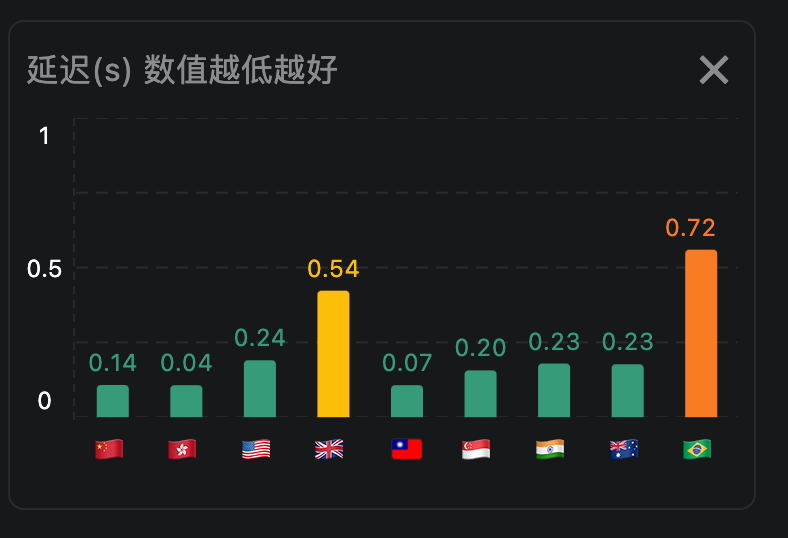
The test measures network latency (how quickly you can reach a given node), not your maximum download speed. Unlike many tools that download large files to estimate peak bandwidth, we focus on round-trip delay to that node only.
We take multiple samples and show an average. Lower numbers mean faster response (lower latency) to that node.
Multiple Connections Issue
If the app reports that the connection limit has been reached but you confirm you are not actually using more devices than your plan allows, wait a short while first: the system will usually remove stale sessions automatically.
If it still does not clear after about five minutes and you confirm no one else is sharing the account, you can:
- Open the online sessions page in a browser (sign in required): /transferlog/vpn/online/1/
- Or in the app: go to Settings, open your profile card, tap Online connections, then swipe left on a session to force disconnect it.
Important: If a device is actively using the VPN, a forced disconnect may reconnect immediately. Stop or disconnect the VPN on that device first, then force the session offline if needed.
What to do if the VPN cannot connect or is too slow
If you are using the latest 5UF VPN app, long-term connection failure is usually uncommon.
If you are on an older iOS release (for example iOS 15 or earlier) or you cannot use the official app on your device, you may hit compatibility or installation limits. Use a third-party VPN client with 5UF and follow this guide: How to use a third-party app with 5UF VPN (tutorial). The reinstall, speed-test, and ticket steps below mainly apply when you can run the official app.
On iOS 16 or later, update the official app to 5.3 or newer from the App Store before the steps below.
If the VPN cannot connect, the Connect button does nothing, throughput feels sluggish, or you are connected yet nothing resolves over the tunnel, work through this checklist:
1. What if tapping Connect does nothing?
This is usually not caused by the server itself. In most cases, the app was denied VPN permission the first time it asked the system to create the VPN connection.
The fastest solution is to reinstall the app.
- Uninstall the current app
- Install the latest 5UF VPN app again
- When you tap Connect again, allow the system to create the VPN connection
If the first permission request was denied, the system often will not properly trigger the VPN authorization flow again, so reinstalling is usually the fastest and simplest solution.
2. What if the VPN connects but the speed is slow?
The latest app already includes built-in speed testing and app availability checks on the home page, so you can evaluate the current network condition before switching servers blindly.
- You can test latency for servers in different countries from the home page
- In general, a result of under 1 second is considered relatively normal
- After switching to another server, the app can test again so you can compare quickly
- The app also checks availability for major services such as TikTok
- It can also help you identify which service region the current server is closer to, such as Japan or Hong Kong
These tools help you quickly understand whether the problem is caused by the current server, your current network environment, or the service you are trying to use.
3. The tunnel shows connected, but absolutely nothing loads — then what?
If the VPN connects successfully yet browsers and apps remain completely unreachable, don't assume it's only the remote node — check whether your local uplink network is blocking or rewriting traffic.
- Switch networks (Wi‑Fi vs cellular vs another ISP hotspot). If browsing works normally on another network, the issue is likely specific to your previous network exit.
- Clarify whether this ever worked before on the same network, or started only recently — that timeline narrows investigations a lot.
When you're already in the connected-but-no-Internet situation and reinstalling, plus resetting rules to defaults/clearing custom policies, still doesn't help — try a full quit of the desktop/mobile client:
- iOS/iPad/macOS: make sure there's no lingering VPN/control icon in the menu/status area after you quit (exact UI varies). If unsure, swipe the app away from the app switcher, then reboot when needed.
- Windows: ensure the tray icon is gone — if unsure, inspect Task Manager for orphaned processes or restart Windows before launching only the 5UF client.
After a clean reopen (or reboot), open a ticket and attach network diagnostics, speed test output, app availability results, and uploaded logs wherever the form offers them — those artefacts help us troubleshoot stubborn edge cases faster.
4. What if none of this fixes it?
If you followed the checklist but the VPN stays slow, never connects, or still cannot reach anything while connected, use the integrated ticket wizard and ping support.
- Open the support ticket section in the latest app
- At the bottom of each ticket page, you will see related action buttons
- Send the test results to support
- Our support team can use your speed test, app availability test, and network diagnostic results to identify the issue faster
The ticket system now supports better email and push notifications, making it easier for us to contact you and solve the issue more quickly.
Recommendation: when you run into a problem, start with the built-in speed test, app availability check, and ticket feedback tools in the latest 5UF VPN app. This is usually faster and more accurate than describing the problem manually.
TikTok not working? Quick 5UF VPN setup guide
If TikTok still shows a black screen, fails to load, or redirects to Douyin even after you connect to a VPN, the problem is usually not just the IP address. TikTok also checks your current phone and network environment.
We recommend using the latest 5UF VPN app.
Quick setup:
- Fully close TikTok first.
- Turn on Airplane Mode and wait a few seconds.
- While Airplane Mode is on, manually turn Wi-Fi back on.
- Open the 5UF VPN app and connect to an available server.
- After the VPN is connected, open TikTok.
- Once TikTok loads normally, you can usually turn off Airplane Mode and return to normal mode.
Recommendations:
- Try to avoid Hong Kong servers, as they may affect TikTok region detection.
- For the same TikTok account, try to keep using the same server to avoid cross-region recommendations.
- If one server does not work well, switch to another server in the same region instead of changing countries too often.
If it still does not work:
- Switch between Wi-Fi and mobile data, then try again.
- Change to another non-Hong Kong server.
- Fully close TikTok and reopen it.
For long-term stable TikTok use, keep using the latest 5UF VPN app and try to maintain a stable server and network environment.
What is the “Compatibility Password”? How is it different from the regular account password?
To support certain legacy VPN dialing protocols, 5UF VPN previously introduced a Compatibility Password.
The Compatibility Password is mainly used for:
-
L2TP
-
PPTP
-
IKEv2
-
“Super VPN” servers in the browser extension (Note: not during the first login, but when selecting a server and being prompted to enter the password again.)
These legacy protocols have technical limitations:
-
The password must be stored in plaintext on the server side
-
Special characters are not supported
-
Encryption standards are outdated
Because of these constraints, a separate Compatibility Password was required.
What is the regular account password?
The latest 5UF VPN APP now uses a modern password encryption mechanism that meets current industry security standards:
-
Passwords are securely encrypted and stored
-
Full character set supported (including special characters)
-
Not directly tied to VPN dialing authentication
-
No plaintext storage required
In the new client, VPN authentication is handled through upgraded secure mechanisms and is independent from the old Compatibility Password.
Why are we phasing out the Compatibility Password?
Due to the technical limitations of legacy protocols:
-
Passwords must be stored in plaintext (security risk)
-
No support for special characters
-
Weaker encryption design
For security reasons, we have decided to gradually discontinue support for Compatibility Passwords and legacy protocols.
Can existing users still use the Compatibility Password?
Yes, existing users can continue using it for now.
However:
-
If you change your account password
-
The new password will become your regular account password
-
The old Compatibility Password will not automatically sync
-
The two passwords will become different
This is why we strongly recommend migrating to the latest client.
Our Recommendation
We strongly recommend all users:
-
Switch to the latest version of the 5UF VPN client
-
Stop using legacy apps
-
Stop using legacy protocols (L2TP / PPTP / IKEv2, etc.)
Legacy protocol support and Compatibility Password functionality will be discontinued in future updates.
The new client provides:
-
Stronger encryption
-
Higher security standards
-
More stable connections
If you have any questions, please contact our support team via the in-app ticket system.
5UF VPN Push Notification Test – FAQ (English Version)
1. What is the Push Notification Test?
To ensure you receive customer support replies, account alerts, and important service updates, 5UF VPN now includes a Push Notification Test feature.
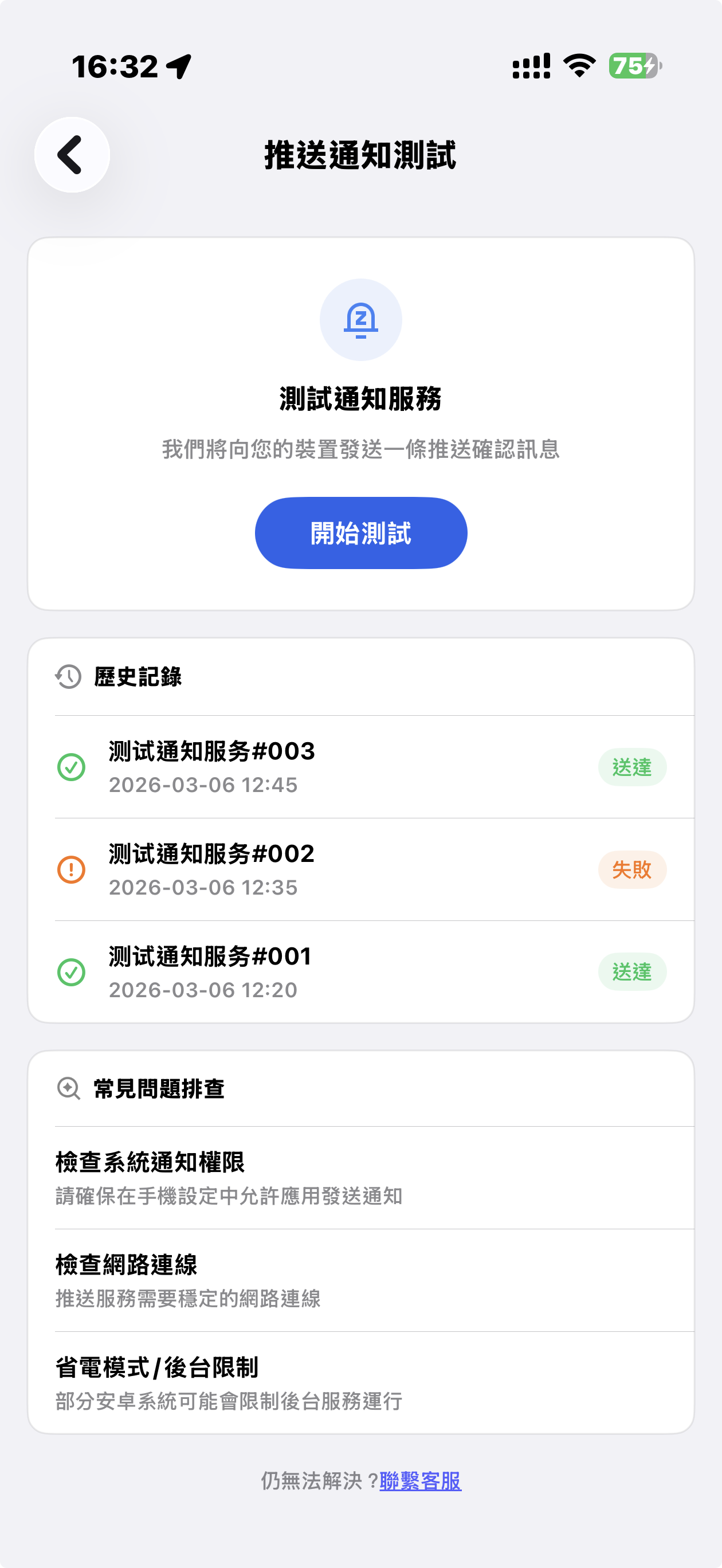
Tap “Start Test,” and a test notification will be sent to your device. The result will show:
-
✅ Delivered
-
❌ Failed
This helps you verify whether push notifications are working properly.
2. Why do VPN apps face more push issues?
VPN apps are more likely to encounter push delivery issues due to:
-
Android devices in China not supporting Google FCM
-
Manufacturer ROM restrictions (MIUI, EMUI, ColorOS, etc.)
-
Aggressive battery optimization
-
Network policy conflicts
Regular testing is recommended.
3. Special Notice for Android Devices in Mainland China (Important)
Android devices sold in Mainland China:
-
❌ Often do not support Google FCM
-
❌ May restrict overseas push channels
-
❌ Frequently disable background connections
You may need to:
1️⃣ Enable Auto Start
Settings → App Management → 5UF VPN → Allow Auto Start
2️⃣ Disable Battery Optimization
Settings → Battery → App Power Management → No Restrictions
3️⃣ Allow Background Activity
Make sure the app is not restricted or “deep sleeping.”
Brand-specific paths:
-
Huawei: Battery → App Launch Management
-
Xiaomi: App Management → Battery Saver
-
OPPO / vivo: Background Freeze Management
4. What if the test shows “Failed”?
Please check:
-
Notification permissions are enabled
-
Network connection is stable
-
Restart the device
Some Android systems temporarily suspend push channels.
5. Delivered but no popup?
Possible reasons:
-
You were using the app
-
Notification was delivered silently
-
Marked as low priority
Check your notification history.
6. Does VPN status affect push delivery?
Generally no.
However, delays may occur when:
-
Switching VPN nodes
-
Experiencing unstable network
-
Device enters deep power-saving mode
7. When should I test?
Recommended after:
-
Changing devices
-
Updating system
-
Updating 5UF VPN
-
Suspecting missed notifications
8. Why are push notifications important?
Push notifications ensure you receive:
-
🔔 Customer support replies
-
🔔 Account alerts
-
🔔 Service maintenance notices
-
🔔 Security updates
This is especially important for VPN users.
9. Still not working?
Please contact support in the app and provide:
-
Device brand & model
-
OS version
-
Screenshot of test result
We’ll assist you further.
How to Clear Cache Issues (Windows)
-
Close 5UF VPN completely
-
Make sure the application is fully exited.
-
Check the system tray and Task Manager to ensure no 5UF VPN processes are running.
-
-
Navigate to the cache folder
-
Open File Explorer and go to:
C:/Users/user/AppData/Roaming/com.top.wuf
-
Important: Replace user with your own Windows username, as that folder represents your account.
-
-
Delete all files inside this folder
-
Select all files and folders inside com.top.wuf and delete them.
-
This clears any cached data that may be causing issues.
-
-
Restart 5UF VPN with administrator rights
-
Right-click the 5UF VPN icon and choose Run as administrator.
-
This ensures the app can rebuild its cache properly and avoids permission issues.
-
✅ After this process, 5UF VPN should start fresh, without old cached data causing errors or slowdowns.
What to do if the Windows 5UF app cannot start or has cache issues
If the Windows version of 5UF APP does not respond, crashes, gets stuck, or fails to open, the cause is often damaged local cache data.
Recommended steps:
- Fully exit 5UF VPN and make sure no tray icon remains.
- Open
C:/Users/YourWindowsUsername/AppData/Roaming/com.top.wuf. - Delete the cached files in the
com.top.wuffolder. - Restart the computer.
- Right-click 5UF VPN and choose Run as Administrator.
If it still cannot start, contact support and provide your Windows version, device model, screenshot of the error, and the time when it happened.
If you are still using an older client, we recommend switching to the latest 5UF VPN app for better stability and compatibility.
TUN Mode vs System Proxy
- TUN mode creates a virtual network adapter on your device, intercepting and forwarding all traffic at the network (IP) layer. This ensures that all apps and services — even those that don’t support proxy settings — are routed through the VPN.
- Advantage → Full system coverage for all traffic.
- Limitation → Because it works at the routing level, connections may be less stable under certain devices or network environments.
- By attaching your system’s HTTP proxy directly to the VPN service, System Proxy offers a more stable and consistent connection.
- Advantage → Smooth, reliable, and stable performance.
- Limitation → Because some apps and websites do not support proxy mode, they may still be blocked in certain situations.
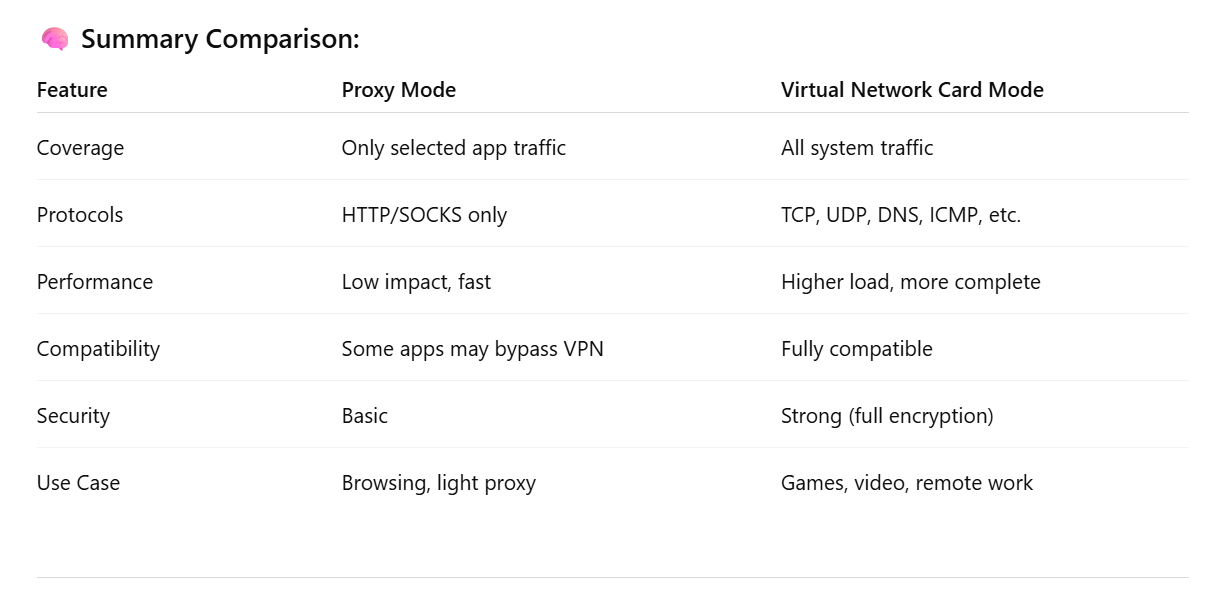
Difference between Virtual Network Card Mode and System Proxy Mode
? Simplified Explanation: Two VPN Modes
? 1. Proxy Mode
✅ What is it?
Only sends specific apps’ traffic through the VPN — like browsers or apps that support proxy settings.
? Key Features:
-
Works only with apps that support proxy protocols (like HTTP, SOCKS5).
-
Other apps on your system don’t go through the VPN.
-
Faster and lighter on system resources.
-
Some apps (like games or built-in network tools) might bypass the VPN.
-
More flexible — you can choose which apps use VPN and which don’t.
? Best For:
-
Browsing websites
-
Light or casual VPN use
-
When you only want to route some traffic through the VPN
? 2. Virtual Network Card Mode (TUN/TAP Mode)
✅ What is it?
Creates a virtual network card and takes over all traffic on your device, routing it through the VPN tunnel.
? Key Features:
-
Sends all traffic (web, apps, games, system services) through the VPN.
-
Supports all protocols: TCP, UDP, DNS, ICMP, etc.
-
More secure and complete coverage.
-
Uses more system resources than proxy mode but is more stable.
-
Common in VPNs like OpenVPN, WireGuard, L2TP, IKEv2, etc.
? Best For:
-
Streaming video
-
Online gaming
-
Remote work / accessing company networks
-
Full security and encryption